
Editing a Piece to Camera
1. Keep it tight and engaging
- Trim out pauses, mistakes, and filler words
- Aim for short clips (5–7 seconds) where possible
Extra tip
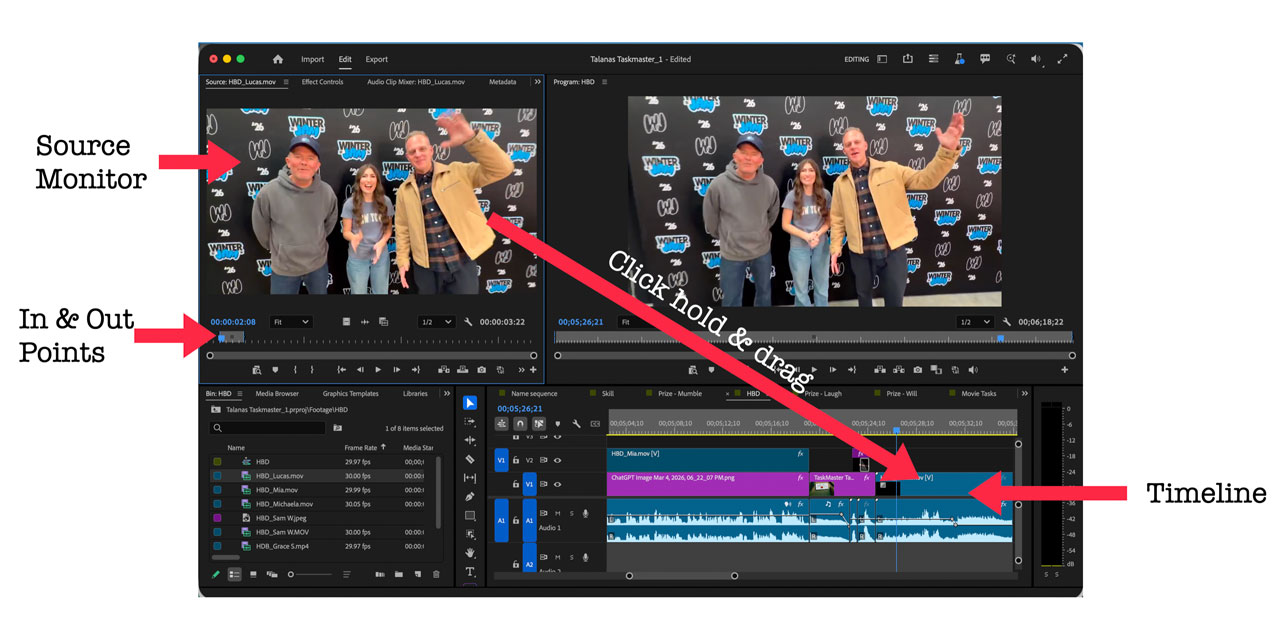
If using a professional editing tool like Adobe Premiere Pro, use the In-Out-Drag edit method. In the Source monitor, set the In point (the I key of the keyboard) at the start of the edit. Set the Out point (the O key on the keyboard) at the end of the edit. Drag from the Source monitor to the Timeline to insert the edit and preview it on the Program monitor.
2. Use cutaways (B-roll)
- Add supporting visuals to:
- Cover jump cuts
- Reinforce what is being said
- Examples: classroom shots, screen recordings, relevant actions
3. Maintain a clear structure
- Beginning: introduce the topic
- Middle: key points or explanation
- End: summary or call to action
4. Add titles and captions
- Include a clear opening title
- Use subtitles for accessibility and clarity
- Keep text simple and easy to read
Extra Tip
Use Adobe Express (https://express.adobe.com) to create animated titles.
5. Use sound wisely
- Balance voice and background music
- Keep music subtle and not distracting
- Keep the volume level between -6 & -12 decibels
6. Keep transitions simple
- Use cuts or simple fades rather than flashy effects
- Let the story—not the effects—do the work
 Dr Tim Kitchen