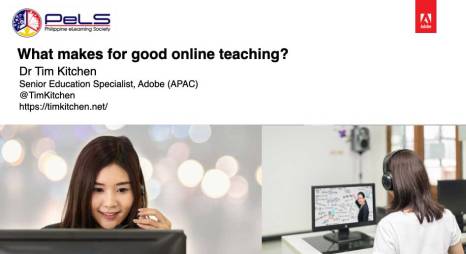
About a week ago, the Philippines eLearing Society invited me to run a webinar for them about effective online teaching for their members. They asked if I could run the event on Friday 8th May at 10AM their time. After a little bit of re-organising of my schedule for that day, I agreed and was planning to run it via my BlueJeans online conference tool which handles up to 200 participants at a time.
They suggested that they may be an issue because there could be up to 2000 teachers interested in joining this session. After I picked myself up from the floor, I agreed to use their Microsoft Teams Events system whoch would handle those sort of numbers.
With so many potential connections, anything could go wrong technically so I decided to create a series of short videos for the participants to stream on their devices and then do Q&A in between each video. This would be a practical example of both synchronous and asynchronous teaching and learning that I could model for them. Adding the wonderful How do you do online teaching clip made by Adobe Education Leader and TAFE QLD educators Kev Lavery into the mix, I had a good 1hr webinar in place.
During the dry run, I was told that 4000 teachers had registered to get access to the recording but because it was a teaching day there would be a considerable drop off.
We ended up with 1,059 teachers live, it was the largest online audience I have ever worked with.
Below are the videos I prepared for this event.
Chapter 1
Key concepts:
COVID-19 disruptions forcing a needed change
Synchronous online teaching
Students as moderators
Features of a good synchronous tool
Asynchronous online teaching
Using an LMS
Chapter 2
Key concepts:
Open webcams at the start of a synchronous session
Mute mics
Record short segment
Some unit & school avoid synchronous sessions
Q&A & polls
Flipped Learning
Blooms Taxonomy
Seymour Papert
Plug into network
Use headset
Look at your webcam
Light behind or to the side of camera
Second device for monitoring
Chapter 3
Key concepts
Blended learning
Open mind set vs closed mind set
Video as a literacy
Spark Video
Premiere Rush
Premiere Pro
Teacher making their own content
Chapter 4
Kev Lavery’s video – How do you do online learning?
EduChats is a series of interviews with teachers and parents about how they are managing/thriving during the COVID-19 period of isolation and online schooling.
A message for all Victorian friends of Adobe in Education
Podcast link – in case you prefer not to read all the info below
Hi folks
On behalf of the Adobe Education team, I would like to congratulate all Victorian educators for managing this part of the academic year predominantly on-line. I have been so impressed with all the stories I am hearing from Victorian teachers, parents and students about how everyone is managing and (it appears) thriving.
Being Adobe users, there is a good chance that you are taking on the extra responsibility of supporting your colleagues during this time. I was so pleased hear a Victorian primary teacher, who is a member of the Adobe Education Leadership community, say how privileged he is to be in a position to help so many of his colleagues and students at this time.
The Adobe in Education team would like to support you and we have a number of resources that you and your colleagues may find helpful during this time of change. Especially with all Vic DET secondary schools and most ISV and Vic Catholics school as well as many university faculties having access to Adobe tools from home …
Free access to Adobe Creative Cloud at home during COVID -19
Many school systems and universities have taken advantage of the extended complementary access to Adobe CC for BYOD. Click here for a video that explains more and make sure your IT support people are aware of this offer, especially if you don’t already have home access.
Note: To be eligible for this access, your school or university must be a current customer with an active Device, Shared Device License, or Serial Number plan.
Weekly webinars
Join the weekly webinars that I am hosting during the COVID-19 period to help encourage creative and engaging synchronous and asynchronous online teaching and learning experiences.
– Wed April 29, 7 PM to 9 PM – Theme: Online & Mobile App Design & development
– Thurs May 7, 7 PM to 9.00 PM – Theme: Minecraft & Aero
– Thurs May 13, 7 PM to 9.00 PM – Theme: Illustrator, Fuse, Mixamo & Aero
– Wed May 20, 7 PM to 9.00 PM – Theme: Video with Rush & Premiere Pro
– Tue May 26, 4 PM to 6.30 PM – Theme: Adobe in Education
More to come …
Those who register will receive a reminder email as well as a copy of the recordings that are made during the sessions.
DLTV repeat event
This week, I ran a webinar for DLTV titled – What makes for good online teaching? Because it was book up so quickly, we are having a repeat session on 30 April from 3.45 PM to 5 PM – https://dltv.vic.edu.au/event-3808145
Vic DET teachers – Digital Learning Services newsletter
Last week, the Digital Learning Services team from The Victorian Department of Education and Training sent out their newsletter which featured a link to this Adobe Spark Page with lots of resources for all teachers.
Adobe Connect is a preferred online synchronous tool for many educators because is it a learning & teaching platform rather than a conferencing system. It is also free for 90 days during the COVID-19 isolation period. Click here for a teacher user guide on Adobe Connect. (https://bit.ly/adobe-connect-userguide20)
EduTips
A new set of Adobe EduTips have been posted on CreateEdu TV recently to help teachers and students learn how to use a range of Adobe applications such as Adobe Spark, Character Animator and Photoshop.
STEM 2020 On Demand Conference
Sir Ken Robinson is keynoting at the STEM 2020 On Demand Conference which is starting next week and being organised by the NSW Department of Education but open to all educators. I also will have a presentation at this free event which starts next Monday and will be available for about 30 days. You do need to register to see the content. (https://stem2020.com.au/)
EduChats
Two Victorian teachers are the first to feature in a new podcast/vodcast series I am hosting called EduChats. You can listen/view and download these chats via https://bit.ly/adobe-educhats
Keep Being Creative site
The Keep Being Creative site is a new initiative for parents, teachers and students working & studying from home. It aims to provide new digital creativity activities each week. (https://bit.ly/adobe-KBC)
Book an Adobe Expert
Adobe are offering their enterprise education customers the opportunity for some time online with one of their experts. This could be for an online session with a group of students and their teacher/s or it could be an online professional development event for teachers (minimum of 5). Click here to find out more and book in your class and/or colleagues.
Adobe Distance Learning Resources
The Adobe Distance Learning Resources site is being updated each week with a range of new courses, articles and blogs including great activities from the Khan Academy and a new initiative in collaboration with Time Magazine called TIME for kids.
How are you going with your Adobe Education Exchange points? If you have 300 or more, you qualify to apply to become an Adobe Campus Leader which is a stepping stone to becoming an Adobe Education Leader. Note that both of these programs provide you with your one personal full version of the Adobe Creative Cloud and many more benefits.
Please share all of the above resources with your colleagues and wider education networks.
I just downloaded the STEM 2020 On Demand Conference (Strategies for a Rapidly Changing World) app and scanned through the speaker list. I am very honoured to be listed with such an amazing presenters like Sir Ken Robinson, Dr Karl Kruszelnicki AO, Dr Jordan Nguyen, Adam Spencer and many more.
It is going to be an amazing event and it is open to all educators everywhere.
On Demand Content Available: 27 April 2020 to 27 May 2020
EduChats is a series of interviews with teachers and parents about how they are managing/thriving during the COVID-19 period of isolation and online schooling.
This interview with Michelle Dennis is the first in the series.
Michelle is from Strathcona Baptist Girls Grammar School in Melbourne, Australia. She is Strathcona’s Head of Digital Learning and Innovation and also an Adobe Education Leader.
Some of you are starting Term 2 this week and others are preparing for what will be a very unusual teaching experience combining a mix of face to face with online synchronous and asynchronous teaching and learning. As a member of the Adobe Education Exchange, there is a good chance that you are also seen as digital leaders among your peers. Many of whom are likely to be struggling with all the changes and the sudden reliance on technology that may have been avoided in the past.
Some can’t wait till this is disruption is over. Others are saying that this is the change that we have been calling for and that education will never be the same again – in a good way. One leading educator recently said in a podcast – “we have finally got education to move not only into the 20th century but into the 21st century.”
The Adobe in Education team have a number of resources that you and your colleagues may find helpful during this time of change …
Weekly webinars
Join the weekly webinars that I am hosting during the COVID-19 period to help encourage creative and engaging synchronous and asynchronous online & face to face teaching and learning experiences. Tomorrow’s theme is sound & video and our guest host will be Mark Woszczalski from TAFE NSW.
April 15, 7PM to 9PM (AEST) – Theme: Video & Audio online
April 22, 7PM to 9PM (AEST) – Theme: AR, VR & 3D online
April 29, 7PM to 9PM (AEST) – Theme: Online & Mobile App Design & development
May 7, 7PM to 9.00PM (AEST) – Theme: Minecraft & Aero
May 13, 7PM to 9.00PM (AEST) – Theme: Adobe in Education
More to come …
Those who register will receive a reminder email as well as a copy of the recordings that are made during the session.
Keep Being Creative site
The Keep Being Creative site is a new initiative for parents, teachers and students working & studying from home. It aims to provide weekly digital creativity activities.
EduTips
A new set of Adobe EduTips have been posted recently to help teachers and students learn how to use a range of Adobe applications.
Book an Adobe Expert
Adobe are offering their enterprise education customers the opportunity for some time online with one of their experts. This could be for an online session with a group of students and their teacher/s or it could be an online professional development event for teachers (minimum of 5). Click here to find out more and book in your class and/or colleagues.
If you do find you have extra time on your hands at the moment, why not use this opportunity to earn enough Adobe Education Exchange points to apply for the Adobe Campus Leader program. The ACL program is a stepping stone to becoming an Adobe Education Leader.
Congratulations Craig Daalmeijer-Power
I would like to congratulate Adobe Education Leader Craig Daalmeijer-Power from TAFE NSW who has been internationally recognised as AEL Contributing Educator for the month of April!
The Keep Being Creative site aims to provide activities and inspiration for students to keep enhancing their digital literacy and creativity skills while being isolated at home during the climate of COVID-19.
It you have any great ideas to add to the site, let me know via kitchen@adobe.com
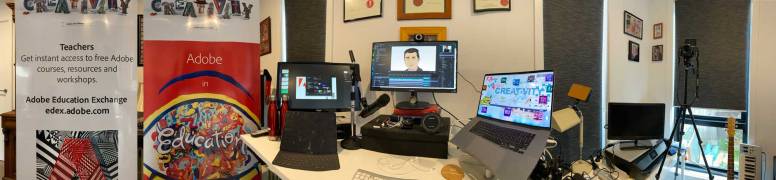
During a virtual dinner party on Friday night, a friend of mine asked if I had been doing any work knowing that I travel a lot. I responded saying that it has been a very busy week at work all from my home studio.
I’ve just look back at the stats and this week I have conducted 6x 1.5 to 3hr webinars to a total of over 400 educators from around Australia. That is more online teaching in one week than I usually do in 3 months.
During my webinars, I record short chapters which makes it easier for teachers and students to digest after the event if they missed the live session or need to re-look at anything that was covered.
Here is a sample of one of the chapters that was recorded during a live event with educators from AISNSW (Australian Independent Schools NSW).
With online teaching and learning becoming the norm for so many teachers and students during the COVID-19 climate, it is important to be aware of what makes an engaging, creative and effective web-based teaching and learning experience.
Synchronous & Asynchronous
Online teaching usually involves a mix of synchronous and asynchronous methodologies. Synchronous online teaching is closer to traditional classroom teaching because it involves the teacher in live connection with their students whereas asynchronous teaching is a more student-centered approach where the student is self-directed to engage in learning tasks that have been provided.
Effective synchronous teaching online is however quite different to teaching face to face. It involves a skill set that develops with experience. It is more like being a live TV or radio presenter and producer then it is being a schoolteacher or university lecturer. So don’t worry if you are struggling in this new form of pedagogy, most educators will be. Even those of us who were early adopters find it a challenge to produce the perfect online lesson. Most students, parents and colleagues will be patient and supportive to teachers who are having a go and doing their best with the technologies that are available to them.
This article provides some tips and tricks to help educators develop their synchronous & asynchronous online communication skills and make the teaching as engaging, creative and effective as possible.
Help is closer than you may think
Learning online is not a new concept for many students. The online world of YouTube and interactive gaming is a big part of many of their lives. This is not a new world for them so don’t be scared to ask them for help if you are feeling overwhelmed. You may even find it helpful to set up a roster of key students who are provided with hosting rights. They can then manage the technology while you focus on the pedagogy.
What online teaching platform is best?
There are many web-based communication platforms that teachers are using globally to conduct online lessons. Many school systems and universities have purchased specific online collaboration and conferencing tools such, MS Teams, Zoom, GoToWebinar, BlueJeans, Blackboard Collaborate and Adobe Connect. Some systems are designed for education and training and others are designed as video conferencing tools for small and large businesses. Some are part of an established Learning Management System, others are stand alone.
There are free (or initially free) versions of the above solutions and other example such as Google Hangouts, Skype and GoToMeeting.
Whichever system you use, make sure it has at least the following features:
video & audio streaming,
live chatting
the ability to share screens
a way of uploading and playing video content (beyond sharing a screen)
a way of seeing the names of the participants
a way of muting or disabling participants web-cam
Preparing for an online synchronous lesson
There are similarities between an effective online teaching experience, a live TV production and a talk-back radio show. One is that they all require preparation to be effective.
Here are some preparation tips:
Contact your students in advance via email to ensure they know how to access the site and when the sessions are taking place. Keeping to the usual school/university timetable is advisable to help maintain a normal routine for everyone.
Provide your class with some video content or reading to digest in advance of the session. Follow a flipped learning model of teaching so that your time with the students is not all about content delivery and the time you do have with the class online can be spent enhancing what the students have already discovered. This is a good mix of asynchronous & synchronous online teaching.
Prepare a series of short video resources in advance of each session to help breakup the content delivery. These can be created with simple to use video editing tools like the free Spark Video or Adobe Premiere Rush. This means less talking for you and hopefully more interest for your students. Again a nice mix of asynchronous & synchronous online teaching
Have some polls/quizzes prepared in advance or run them via the chat feature throughout the session to help encourage the engagement.
Create a slide deck with PowerPoint, Keynote or Acrobat that you can use to guide the students through the main teaching points. If your online portal is able to upload PDF and Video content then it becomes a better presentations experience then always sharing a screen, especially if you or your students are running on low Internet bandwidth.
Turn off notifications on your devices and remove any other potential distractions
Ask your family members if they could try and avoid Internet based activities that take up a lot of bandwidth like streaming videos.
If possible, use an Ethernet cable to directly plug your computer into the Internet network. Direct cable connection will usually provide a more reliable and faster connection to the Internet than WiFi. Most modern homes have network points built into key rooms in the house
Use of the webcam & microphone
If you are in a quiet room, you can probably get away with just using the computer’s internal mic. However, in most cases it is best to use a headset with mic. The closer the mic is to the teacher’s mouth, the clearer the audio will be. I have found the Apple headphones that come with most iPhones to be as good (if not better) than some expensive USB mics that I have tested. However, I haven’t tested them on a Windows based laptop. Bluetooth headphones & mics are generally fine but I recommend the plug in version for sustained quality and reliability.
It’s often good to start a session by encouraging the students to open up their webcams but not their microphones. Having more than one person speaking at once is never a great experience, but seeing everyone (if the system allows) can be a fun way to start. It also helps establish a feeling of community which many of the students and yourself may be craving. If your system allows you to see the whole class, take a quick screen grab of the screen and use it later to take the roll, rather than using up valuable synchronous time with mundane admin tasks. If you can’t see the whole class, screen grab the list of attendees within your system.
When it is time to start a synchronous teaching session, encourage the students to mute their cameras as well as their mics. This will save Internet bandwidth as well as avoid unnecessary distractions for you and the students. The student can do most of their interactions via the chat feature. Occasionally, encourage the students to un-mute their webcams so that they can all be seen. This helps you to know that they are all still on-task and engaged. Take a note of the students who are not responding and chase them up via email later to check on them. They may be totally disengaged in the process or they may not have access to a webcam.
Some students will rely on seeing their teacher’s mouth in order to read their lips. So, when you are on camera, think about the framing and fill the screen with a centered mid-shot. Body language, especially hand gestures can also help a student understand content better, so make sure the students can see your head, shoulders, torso and arms. And ensure the top of your head is at the top of the frame.
Look at your webcam most of the time when you are presenting. Treat the camera as someone you are talking to. Eye contact is a powerful communication technique.
Ensure that there is plenty of light (natural light is best) behind or to the side of the webcam. Try to avoid pointing the camera into a light source such as a window with open curtains or blinds during the day. This will help to provide the best possible image quality. Also have a think about the background and make sure it is not distracting. Some systems like MS Teams provide a feature that blurs out the background.
Monitor your session
During most sessions, you will log into the system as the host. This usually provides you with access to extra features and a different screen layout to the guests. Also, when you share your screen, you generally lose access to the chat and other features.
If you can, it is wise to log in as a guest on a second device like your smart phone, tablet or second laptop (if you have one). This way you can monitor what your students are seeing and keep an eye on the chat. It is easy to forget that you are sharing your screen when you don’t want to. By having a monitor next to your main screen, you can see at a glance what you are presenting.
Having a second monitoring device also allows you to test that your audio is working. However, there will be a slight delay in your audio so, once tested, keep the volume of your second device down to zero to avoid any potential annoying audio feedback issues.
Flow of the synchronous lesson
Introduce each session with an interaction activity such as a quiz via the chat feature or a set of poll questions (if available). This will help the students to realise it is two-way communication experience rather than a podcast, YouTube or TV presentation.
Provide a slide early in the session that outlines the aim and the planned objectives so that everyone is aware of what is expected.
When verbally presenting the main content, mix it with a variety of images, animations and video content. Do some research and have a look at how live TV presenters share content and learn from the way they mix audio content with visual content.
Keep an eye on the chat when possible and encourage students to ask questions and make comments throughout the session. Put down some ground rules about appropriate chatting etiquette such as never put anyone down and keep the discussions relevant and on-task. Assign one of the students to monitor the chat when you are presenting and allow breaks so that they can share any questions or feedback that you may have missed. You may find that some of your usually more quiet and shy students are more confident in taking part in discussions via a chat pod.
Encourage students to also email questions, especially if they are embarrassed to use the chat feature. Assure the students that you are happy to connect with them via email if they need any individualised assistance.
After every 10 minutes or so, ask your students to give you feedback via the chat feature. This is a great way to monitor engagement.
Recordings
You don’t need to record the whole lesson, students are more likely to watch back short video segments. Make sure you record important teaching moments so that students who may miss the live session can still catch up and students who were at the live session can re-look at content at their leisure.
Use you school learning management system (LMS) as the portal to archive all the links to the recordings. If your school does not have an LMS, create a Spark Page or a Google Site that can be dedicated to storing the key resources for each subject/topic.
The more sessions you run, the easier they become. I encourage your to practice a few times before going live and look back at the recordings of your practice sessions.`
When this crisis is over
The COVID-19 crisis is forcing a lot of change for a lot of educators and students. For a number of teachers, this may be the first time they have used video and online technologies as a major communication tool. Many will be going through a steep learning curve in a short space of time.
At some point, schools and universities will be back to a mainly face to face operation but the new skills developed during this time can continue to be used in a blended learning mode, which will benefit future learning and teaching experiences and help prepare students for a future workplace where online communication is vital in many industries.
Let’s look at the positives and use this experience as a time to develop new digital literacy, communication and creativity skills among ourselves, our peers and our students.
Summary of tips
If possible, plug into your Internet network rather than rely of WiFi
Think of your synchronous lessons as a live radio or TV broadcast
Don’t stress when things go wrong, in most cases the students will be patient and supportive
If in doubt, ask a student to help manage the technology for you. Ask a key student hosting rights to help moderate your live sessions.
Make sure your students know the log in process and the time of your live sessions.
Keeping to the usual timetable is recommended
Provide video or other resources in advance for students to digest prior to the session. Follow a Flipped Learning model.
Use lots of video content. Make up your own videos and get student to do likewise to share their learning
Break up the session with chat responses, quizzes and polls
Prepare slides with images and key text to progress through the session
Avoid distractions like your phone and other family members
Use a head-set, keep the mic close to your mouth but not covering your mouth.
Open webcams at the start of a session but not mics.
Mute all but the presenter’s webcam during important teaching times
One person speaking at a time
Make sure student can see your mouth & arms
Place your head at the top of the frame and look at the camera when talking
Light should be behind or to the side of the camera, not behind you
Monitor the session with a second device if possible that is signed in as a guest
Give students opportunities to share with you via email after the session. Not all students will want to use the live chat feature.
Record key parts of the session, not the whole event and store the recordings & other resources on your LMS or equivalent for easy access.
Practice makes perfect
______
Extra resources
During the COVID-19 crisis, I am running free weekly webinars with a focus on developing creative online teaching experiences for students. Whatch me in action to see how I conduct an online session and encourage your colleagues to join.
Adobe Connect users – click here for a user guide I recently made for teachers who use Adobe Connect which is currently free for 90 days during this COVID-19 climate.
Adobe EduTips – click here to access a growing set of resources which are focused on how to use Adobe Creative Cloud apps to enhance both face to face and online teaching and learning.
The Adobe Distance Learning Resources – The Adobe Education Team have assembled these resources and learning opportunities to help educators engage remote students through online learning.














 Dr Tim Kitchen